


KWGT Kustom Widget Maker
3.92.35K Reviews
App Specs
- Version
- 3.82b621115
- Updated On
- License
- Free
- Downloads
- 10,000,000+
- Developer
- Kustom Industries
- Categories
- Personalization
- Platform
- Android
Screenshots
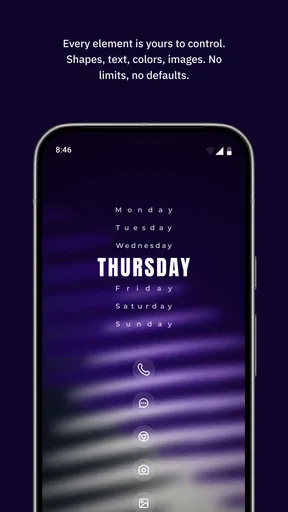
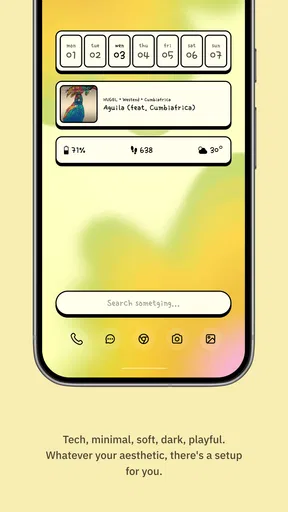
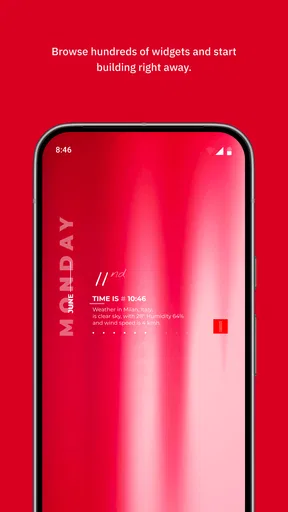
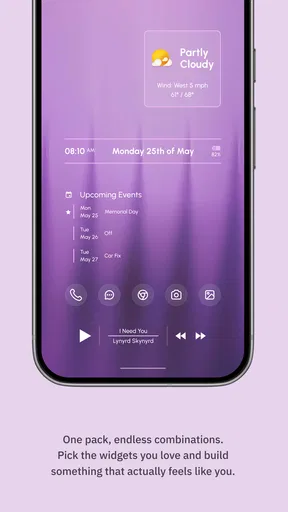
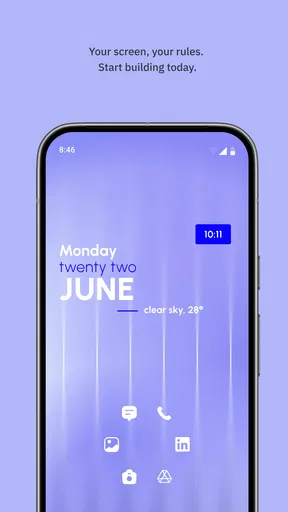
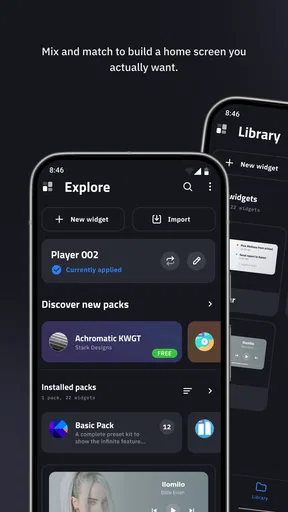
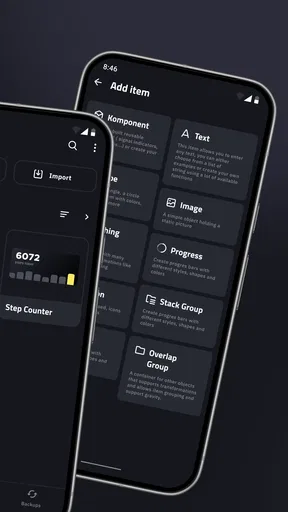
 Analysis by AppCompare
Hey there! So, I’ve been diving into the world of widget customization lately, and I stumbled upon this gem called KWGT Kustom Widget Maker. If you’re like me and love tweaking your phone until it reflects every little bit of your personality, this app might just be your new best friend.
Why the first week feels rewarding
The first few sessions with a widget editor can feel like a small design project. You choose a blank space on your home screen, add a KWGT widget, and then discover that its size and layout are only the starting point. I like that this changes the relationship with the home screen: instead of picking a fixed design and accepting its limits, I can decide what deserves attention and where it should sit.
That freedom is also why the early appeal can be stronger than the practical benefit. It is tempting to build a screen around an elaborate clock or a carefully arranged set of details simply because the editor makes those ideas possible. I get more lasting value when I start with a daily annoyance instead: perhaps I want the time and weather visible together, or I want a compact glance at information I otherwise check by opening separate apps.
As a free personalization app from Kustom Industries, KWGT is easy to try without making a purchase the first step. It is rated for Everyone, and its current version is 3.81b530915, with Android 8.0 as the minimum operating system. The app has a 3.9 average from around 49,000 ratings, and it has passed 10 million installs. Those figures suggest a well-established tool, though they do not tell me whether its hands-on editor will suit every user.
Getting Started with KWGT
First things first, let’s talk about how to get this baby up and running. Downloading KWGT Kustom Widget Maker is a breeze. Just hit up the Google Play Store, and you’ll find it there waiting for you. Once installed, the app greets you with a clean interface that’s both inviting and a tad bit intimidating, but don’t worry, I’ll walk you through it.
The app starts with a brief tutorial, which is super helpful if you’re new to widget creation. It’s like KWGT is holding your hand, guiding you through the basics—trust me, you’ll appreciate it. You’ll learn how to add a widget to your home screen, which is as simple as long-pressing on a blank spot, selecting KWGT, and then choosing your widget size. Easy peasy!
Diving into Customization
Alright, here’s where the magic happens. Once you’ve got a widget placed, tap on it, and you’re taken into the KWGT editor. This is your playground. You’ve got layers, you’ve got objects, and you’ve got a world of possibilities. Feeling creative? You can start from scratch. If coding is your thing, KWGT lets you play around with formulas and scripts to create exactly what you envision. Don’t worry, though—there are also plenty of pre-made templates to get you started if you’re not feeling like Picasso today.
Worth Reading Before You Choose

EA SPORTS FC Mobile 26 Is a Bigger Football Game, but It Takes Time

Flipboard Shows What News Apps Must Do Beyond the Feed

Switching to Android Auto Means Rethinking Your Driving Routine

Google Calendar Makes a Crowded Week Easier to Manage

Ludo King Makes the Most of the Minutes Between Plans

Baby Panda World Brings Quick Play to Modern Phones, but Its Game Library Feels Busy
What I love about KWGT is its flexibility. Want a clock? You got it. Want to display the weather? No problem. How about some funky shapes and designs? Done and done. It’s all about what you want to see on your screen. The editor might seem overwhelming at first, but once you get the hang of it, it’s incredibly satisfying to see your creation come to life.
Making a widget useful every day
My most practical advice is to decide what a widget should help you do before you begin decorating it. A large design with several objects can look impressive, but if I have to hunt through it to find the time or a useful detail, it is not earning its space. I would start with one main purpose, then add only information that makes sense beside it. A clock and weather combination, for example, has a clear job; extra visual flourishes should not make that job harder.
A realistic routine might be checking the screen while getting ready in the morning. A compact layout that puts the time and weather where I naturally look can save a few small interruptions. Later, an activity tracker or step count may help me glance at progress without opening another app. The advantage is not that a widget replaces those apps; it is that a small amount of relevant information can be surfaced on the home screen.
KWGT’s formula and variable options are most useful when they solve a repeated editing problem, rather than as decoration for its own sake. If I reuse a color or setting across a design, a global variable can make a later adjustment less tedious than changing each matching element manually. That is a worthwhile workflow once a layout has several related parts. For a single, very simple widget, learning that system may take longer than making the change directly.
Features That Stand Out
One of the standout features for me is the layer management. You can add multiple layers to your widget, each with its own properties. This means you can create complex designs with ease. The app also supports global variables, which is a fancy way of saying you can make quick changes to multiple widgets without having to edit each one individually. Talk about a time saver!
KWGT also integrates seamlessly with other apps. For instance, you can pull in data from your calendar or music player, which means your widgets aren’t just pretty—they’re functional too. Plus, the app supports third-party plugins, so if there’s something you want that KWGT doesn’t offer out of the box, chances are there’s a plugin for it.
Where it fits among widget options
The main alternative is to use the widgets that come with individual apps or the phone itself. Those are usually the simpler choice: add one, choose from the layouts offered, and move on. If I only want a basic clock or a familiar app shortcut, that may be all I need. KWGT makes more sense when I want several pieces of information arranged in a specific way, or when the default widget’s appearance does not fit the rest of my home screen.
There is a trade-off. A ready-made system widget tends to ask less of me, while KWGT gives me more control at the cost of decisions, setup, and occasional adjustments. It is not automatically better just because it is more customizable. Someone who dislikes editing visual layouts may find the standard option more dependable for their habits, while a person who enjoys tuning spacing, layers, and presentation is more likely to appreciate KWGT.
It is also worth treating community-made packs as starting points rather than guaranteed finished solutions. A design that looks good in a preview may not fit the widget size or arrangement I chose. I would test a pack on the actual home screen, check that the important information remains readable, and only then spend time matching the rest of the screen to it. That simple order helps avoid polishing a layout that does not work in everyday use.
Maintenance, purchases, and friction
Custom widgets are not completely set-and-forget. If I change my home-screen arrangement, alter the visual style, or decide that a piece of information no longer matters, I may need to revisit the design. A modest widget is easier to keep useful than a crowded one with many elements that I have to keep reconsidering. This is the maintenance question I would ask before investing an evening in a detailed setup: will I still want to see this information next month?
The editor has a learning curve because it exposes choices that simpler widgets hide. Layer-based composition and formulas are powerful, but they can make a first attempt feel like more work than expected. I would not recommend starting by reproducing a complicated design from scratch. Begin with a template, adjust one or two parts, and learn how those changes affect the finished widget. That gives a clearer sense of the workflow without turning a quick personalization project into a technical lesson.
The app is free to install, while in-app purchases are listed at $6.99 per item. I would try the basic creation process first and decide whether I actually need a paid item or additional content before spending. That is especially sensible if my goal is only one straightforward widget. Someone planning a heavily customized home screen may value the broader ecosystem more, but the purchase decision should follow a real need rather than the novelty of seeing more options.
Another point to keep in mind is that a widget is part of the home screen, not a replacement for the app behind the information. It is best for a quick glance and a cleaner layout, not for every detailed interaction. If I want to explore a full calendar or manage a music library, opening the relevant app remains the more natural route. Keeping that boundary in mind helps me judge a widget by the small task it handles well.
Community and Resources
Another cool thing about KWGT is the community behind it. There are tons of online forums and groups where people share their creations and offer tips. If you’re ever stuck or need inspiration, these communities are a fantastic resource. You can also find additional widget packs online, some free and some paid, giving you even more options to customize your setup.
"The only limit is your imagination," they say, and with KWGT, that feels absolutely true.
When customization starts to feel tiring
The same flexibility that makes KWGT enjoyable can eventually become a source of fatigue. I can spend more time deciding on small visual details than I spend using the information the widget displays. If I keep replacing a layout because a new idea looks more appealing, the home screen starts to feel like a project rather than a useful tool. I get better long-term results by making a design, living with it for a while, and changing it only when it fails to serve a real need.
There is also a difference between enjoying customization and wanting to maintain it. If I prefer a phone that stays visually consistent without regular tinkering, a standard widget or a small set of app-provided options is likely the calmer choice. KWGT is for people who want control enough to accept the work that comes with it; it is not the best fit for someone who expects every widget to be ready-made and effortless.
Before building several widgets, I would make one dependable layout and see whether it becomes part of my routine. If I stop looking at it after a few days, adding more designs is unlikely to fix the underlying problem. If I do keep checking it, then expanding gradually makes sense. This approach helps distinguish lasting usefulness from the first-week thrill of a fresh home screen.
KWGT isn’t just an app—it’s a creative tool that lets you express yourself in a way that few other apps do. It’s not just about what’s on your screen; it’s about making your phone truly yours.
Final Thoughts
So, is KWGT worth the download? Absolutely. Whether you’re a customization newbie or a seasoned pro, there’s something here for everyone. It might take a bit of time to master all the features, but once you do, you’ll wonder how you ever lived without it. So go ahead, give KWGT Kustom Widget Maker a shot, and let your creativity run wild!
Who will keep it installed?
I think KWGT earns a lasting place for people who enjoy shaping their Android home screen and have a recurring reason to check the information they put there. The strongest case is not a constantly changing display; it is a layout that quietly fits a habit, such as checking time and weather before leaving or glancing at activity during the day. When the setup saves repeated small steps and remains readable, the effort feels justified.
By contrast, I would skip it if my only aim were to add a basic clock quickly, if I rarely look at home-screen widgets, or if editing layouts sounds like a chore. A phone’s built-in widgets are often the better answer for those needs. KWGT is a toolkit, not a requirement: it rewards curiosity and patience, but it does not make customization valuable to someone who would rather leave the screen alone.
My long-term verdict is positive, with that distinction in mind. The editor offers enough creative control to make a home screen feel considered and personal, while templates and community packs can ease the first steps. Its lasting value depends on restraint: build for a real routine, keep the design understandable, and resist changing it just because another style catches your eye. If that sounds enjoyable rather than burdensome, this is a satisfying app to keep around.
Pros
- Highly customizable widget creation.
- Intuitive drag-and-drop interface.
- Wide range of widget templates.
- Integrates well with other apps.
- Supports weather and calendar data.
Cons
- Steep learning curve for beginners.
- May drain battery on older devices.
- Limited free version features.
- Requires additional apps for full use.
- Some features need paid plugins.
FAQs for KWGT Kustom Widget Maker
What is KWGT Kustom Widget Maker?
KWGT Kustom Widget Maker is a versatile app that allows users to create custom widgets for their Android home screens. With a wide range of design tools and options, users can personalize their widgets to display information like weather, time, battery status, and more, making their device truly unique.
Is KWGT Kustom Widget Maker user-friendly for beginners?
While KWGT offers powerful customization options, it might have a learning curve for beginners. However, the app provides a variety of templates and a supportive community, making it easier for new users to start building and customizing widgets without feeling overwhelmed.
Does KWGT Kustom Widget Maker require any special permissions?
KWGT requires certain permissions to function properly, such as access to your device’s storage and location. These permissions are needed to display accurate weather updates and to save and load widget designs. Rest assured, the app is designed with user privacy in mind.
Are there any costs associated with using KWGT Kustom Widget Maker?
KWGT offers a free version with basic features. However, for advanced customization options and additional templates, users can purchase the Pro version. This one-time purchase unlocks a wide range of tools and features, enhancing the widget-making experience significantly.
Can I use KWGT Kustom Widget Maker on iOS devices?
Currently, KWGT Kustom Widget Maker is only available for Android devices. iOS users looking for similar customization options may need to explore other apps specifically designed for Apple’s operating system, as KWGT is optimized for Android’s widget capabilities.


